
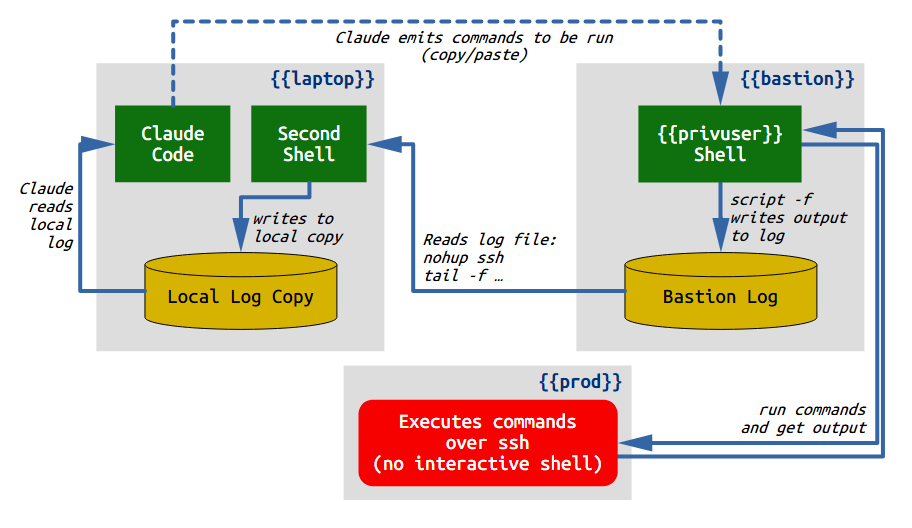
During the bill.wards.net migration, I had Claude helping me run commands (e.g. ansible, docker compose, wp-cli) on the production webhost, but I didn’t want to give Claude direct access to it. Claude would give me commands to run as a privileged user, I would review the command and copy/paste it into the shell if it looked appropriate, then copy/paste the output back to Claude for review. The process of selecting, copying, and pasting the output was onerous and I came up with this pattern to make it easier by giving Claude read-only access to my privileged shell session.
Why limit Claude’s access?
Why not just give Claude direct access? For example, I could have temporarily allowed ssh and/or nopasswd sudo access from the dev host (laptop). But that would violate the security policy I’ve set for my production host. My production host has a privileged user with NOPASSWD sudo access, and SSH to that account is restricted to a couple of physically-secure office machines acting as bastion hosts, but not my daily-driver laptop, where Claude Code is. The trust separation is enforced by several levels: ssh from laptop to bastion, sudo to the privileged role, and ssh to production server. SSH access is limited by ssh’s authorized_keys, firewall rules, and other network configuration settings.
“Just put Claude on the bastion” was never an acceptable option. The constraint isn’t about Claude being uniquely dangerous; it’s about access-level blast radius. Any actor at that level is one fat-finger from breaking the network or the database, so it makes sense to limit that access. If I break something, I’m responsible.
Version 0: The manual loop
Initially, each time Claude proposed a command, I would first review it, select it from the chat window, copy, switch to a window logged into {{privuser}}@{{bastion}}, paste, and run it.
But then I would need to select the output to paste back to Claude. That often meant scrolling up to find the place where it started, selecting the rest of the output in the window, then switching back to Claude’s window to paste the results. Claude then read the output and proposed the next command. Rinse and repeat.
This works, but it is tedious to select and copy the text each time, especially when it involved scrolling up. To make it easier, I proposed capturing the output of the shell in a file and letting Claude read that.
Version 1: Claude ssh to read the output
Claude, operating as my user ID, had unfettered SSH access to my account on {{bastion}}, but not the ability to access {{privuser}}. So I had the idea to run script -f to save the output of my shell in a file that Claude could then SSH in and read.
On the bastion server, after sudo su - {{privuser}}:
export TERM=dumb
PS1='[\D{%H:%M:%S}] \w\$ '
script -f /home/{{privuser}}/session.log
Caveat: need to make sure that the home directory is readable and executable (or put it in some other location such as /tmp), and logfile is readable, by other users such as my own account, which Claude uses.
What this does:
TERM=dumbmakes most tools downgrade to no-color, no-cursor output, which keeps the script log free of ANSI escape codes.- Setting
PS1to this prefixes a timestamp on every prompt line so each carries a wall-clock marker, for a rough approximation of how long ago the command was started. script -f /home/{{privuser}}/session.logstarts a child shell that records every byte of terminal output to the file, flushing after each write so atail -fagainst the file sees data immediately.
Inside that shell, I would paste in commands suggested by Claude, such as:
ansible-playbook -i ansible/inventory.ini --limit {{prod}} \
	--tags docker ansible/playbook.yml --diff
ssh {{privuser}}@{{prod}} 'sudo docker exec nginx-proxy \
	wget -q -O- --tries=1 --timeout=3 \
	http://host.docker.internal:8080/ | head -5'
These commands are run as {{privuser}}@{{bastion}} and use ssh connections to {{prod}} to do the real work. The output gets saved via script -f to the file /home/{{privuser}}/session.log. Then Claude would ssh to {{bastion}} as me and read the file:
ssh {{bastion}} tail +123 /home/{{privuser}}/session.log
But this had two problems:
- Every
ssh {{bastion}} ...Claude wanted to run triggered a Claude Code permission prompt, unless I had auto mode on. This trades copy/paste friction for permission-approval friction, so the same wall-clock cost applied. - Tracking the read-position in the log was awkward over SSH. Claude needs to remember where it last read so it can ask only for the new lines; a remote
tailagainst a remote file doesn’t give a clean affordance for that. The bookkeeping kept getting away from us.
Even with auto mode, this second concern applies; Claude would need to run ssh {{bastion}} wc -l every time, then separately ssh {{bastion}} tail to read the file. Too much overhead, and I thought of a better way.
Version 2: Streaming over SSH
To fix the issue, I opened a third window on my laptop and ran an SSH command to stream the contents of the logfile on the bastion server to a file locally where Claude could easily read it. Since it was now local, Claude can run wc -l before I paste the commands, and tail +{{n}} afterward, with no permission prompts or auto mode needed.
So in this new window, I ran:
nohup ssh {{bastion}} "tail -F /home/{{privuser}}/session.log 2>&1 " \
	> /tmp/{{privuser}}@{{bastion}}-session.log &
The nohup detaches the SSH from STDIN, so that the backgrounded SSH will stay backgrounded and not go to [Stopped] status as soon as it tries to read from the terminal.
The choreography per command: when Claude is about to give me something to run, it has a standing memory item to first run wc -l /tmp/{{privuser}}@{{bastion}}-session.log and note the line count. When I run a command as {{privuser}}@{{bastion}}, the output is saved automatically in the session.log file and appears immediately in the local file /tmp/{{privuser}}@{{bastion}}-session.log.
Then I go back to the Claude window and say ping which Claude knows means to read the output from the file. In practice, that’s just cursor-up and Enter, to repeat the previous thing I said to Claude. Claude then reads tail +{{n}} /tmp/{{privuser}}<{{bastion}}-session.log (where {{n}} is the results from wc -l plus one) and sees only the new output, including the timestamps on the prompts before and after the command.
Now Claude immediately knows whether the command ran as expected, and can see any error output or other diagnostic information. Claude could even go back earlier in time to compare against an earlier run.
Why the timestamp in PS1 matters
The timestamp in PS1 helps you know how long something took, by comparing the prompt before and after execution. It is a rough approximation, not a stopwatch. The number it carries is the time the prompt rendered, not the time the next command started; if I read Claude’s instruction for thirty seconds before typing, that thirty seconds shows up as part of the next command’s apparent duration. But it’s still close enough. You can also just hit ^C or Enter on a blank line to issue no command, to get a fresh timestamp.
If I actually need real time statistics for a command, prefixing it with time is always available. But so far, I haven’t needed it. Rough is enough and the PS1 trick has an outsized payoff: Claude can tell whether a command “took a while” without me having to remember to wrap it in something. That matters specifically when a long-running command (an export, a migration step, a SQL query against a big table) helps to distinguish “is it hung” from “it’s just slow.” Two timestamped prompts (before and after) carry enough signal for Claude to understand the delays without me having to ask.
Note: I keep a timestamp in my prompt for everyday use for the same reason, even if I’m not working with Claude on something, and highly recommend it.
Avoiding noisy terminal escape-codes
Ever since the earliest days of CRT terminals like the DEC VT-52/100/220 and other brands, Unix and Linux shells have output escape-codes to do things like move the cursor around, set colors, boldface, etc. and modern computers still use these codes. These can really clutter up this kind of logging, so it’s best to try to minimize them. I picked script -f because it was already on the bastion server and does exactly one job. But there are some alternatives you might prefer:
screen -Lcaptures the same raw pty output asscript -f. Use this if you already use screen.tmux pipe-pane -o 'cat >> file'is the modern equivalent ofscreen -L, with the same trade-offs. As with screen, if you use tmux already, it’s the way to go.asciinema recis a more clever option: it records a JSON file with content and timing as separate fields, andjq -r '.[2]'gives you content-only text. If the bastion server has it installed and you want timing data structured, this is nicer.
Settings like TERM=dumb and a plain PS1 will go a long way, but if you still get them, you can strip them with sed:
nohup ssh {{bastion}} tail -f /home/{{privuser}}/session.log 2>&1 \
  | sed -urn 's/\x1b\[[0-9;]*[a-zA-Z]//g; s/\r$//; p' \
  > /tmp/{{privuser}}@{{bastion}}-session.log &
If it’s available, ansifilter(1) does the same job more thoroughly.
Thoughts for future iteration
Tooling: As described above, the bastion-side setup and the local-side mirror commands are short enough to type or pull from shell history. For a one-off migration, that’s fine. If it comes up often, both are natural alias/script candidates. But I might want a script to automate the process, including a tool for Claude to run that encapsulates the read cursor and tail behavior. That’s more work than this one case called for, but it’s the right next step if this pattern sees regular use.
The sentinel-line trick works. Claude needs some kind of prompt to indicate that it’s time to read the logfile. At one point Claude said something like “ping me when it’s done” and so I typed “ping” into the chat after it finished. Then just kept doing that after each command, and told Claude to read the file as described. Saying “ping” grew organically from that, but worked well. Claude Code is architecturally reactive: it only responds to something you type, not on a background timer. A continuous watcher that monitored the log on its own is technically possible but fragile given the implementation, and the constraint is probably a feature: it limits the harm Claude can do through self-directed action. The sentinel is a small operational habit, not something to refactor away.
Housekeeping on the local mirror file is not a problem. The nohup ssh ... tail -f mirror eventually stops working after a long idle period; killing and re-running it wipes the local file as a side effect, and that’s enough housekeeping in practice. bastion-side script -f log is the artifact worth keeping; the local mirror is just a window into it. Since the local file is in /tmp/ it gets wiped on system restart.
Giving Claude free rein to run commands on production would be a different shape entirely, and isn’t allowed under my current setup. The spotter pattern is automation of a manual loop, not a path toward removing the human from it. The friction it removes is selection-and-paste friction; the friction it preserves is “I read every command before it runs.” It’s just a few commands on each end, but it saves a lot of inconvenience while protecting security policies.